
NOTE
2.4 Fiddler
Historical notes on Fiddler, its interface, HTTPS/proxy settings, filters, and Android packet capture.
This is a historical learning note and may contain outdated or incomplete understanding.
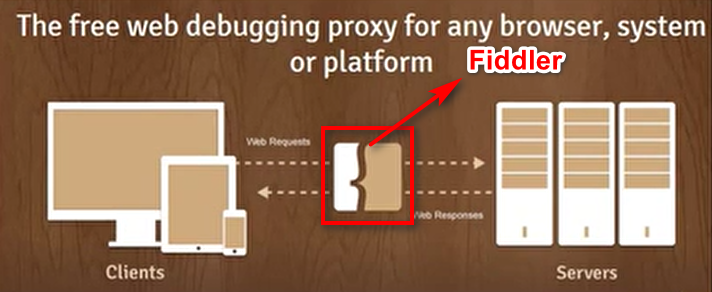
1. How It Works
Fiddler acts as a man in the middle.
2. Fiddler UI
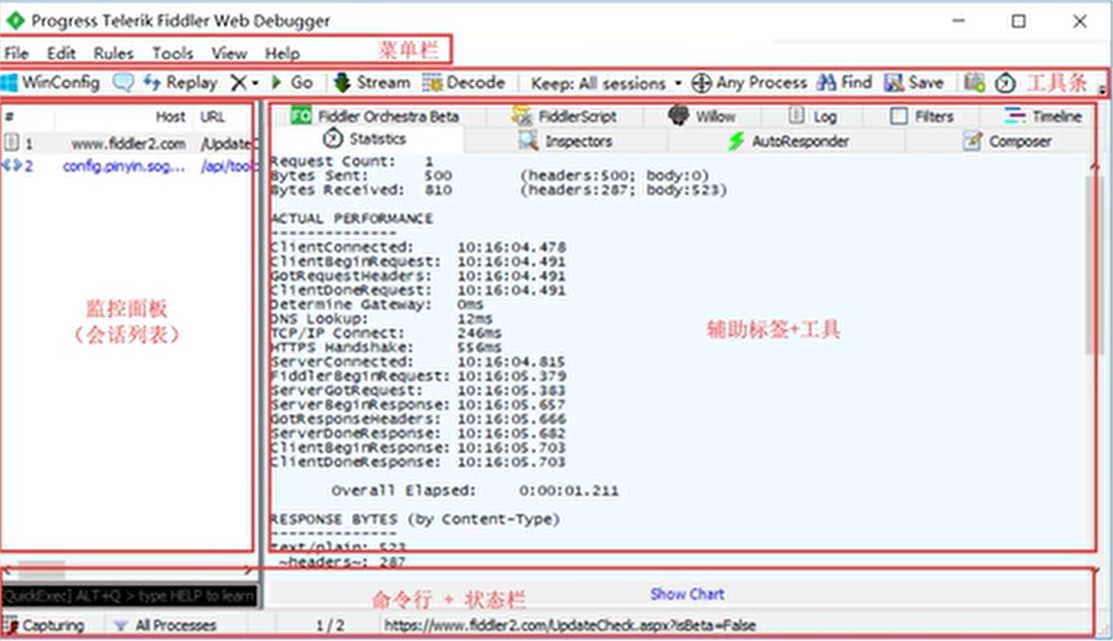
2.1. Toolbar

2.2. Status Bar

2.3. Session Tools
-
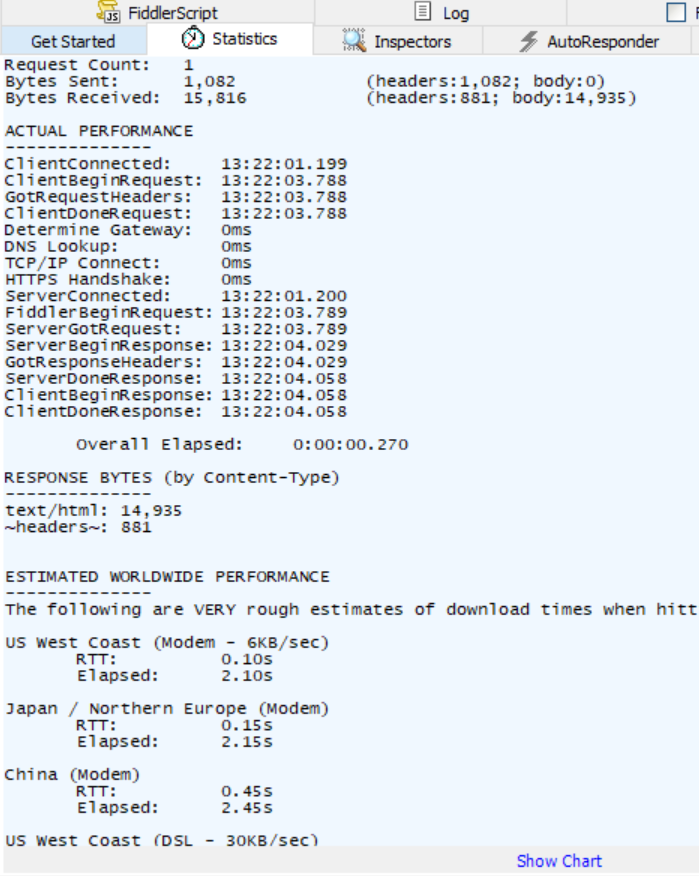
Statistics: performance analysis.
-
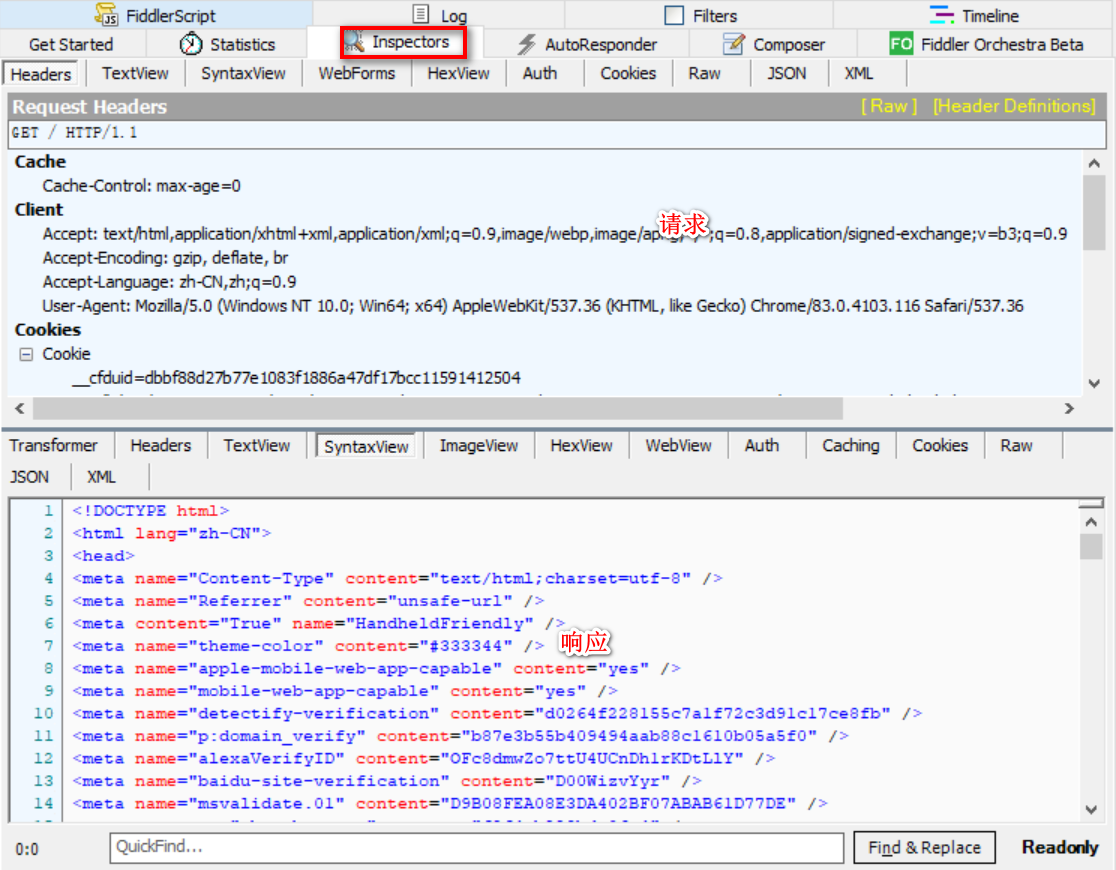
Inspectors: inspect an HTTP transaction.
-
AutoResponder: customize response information.
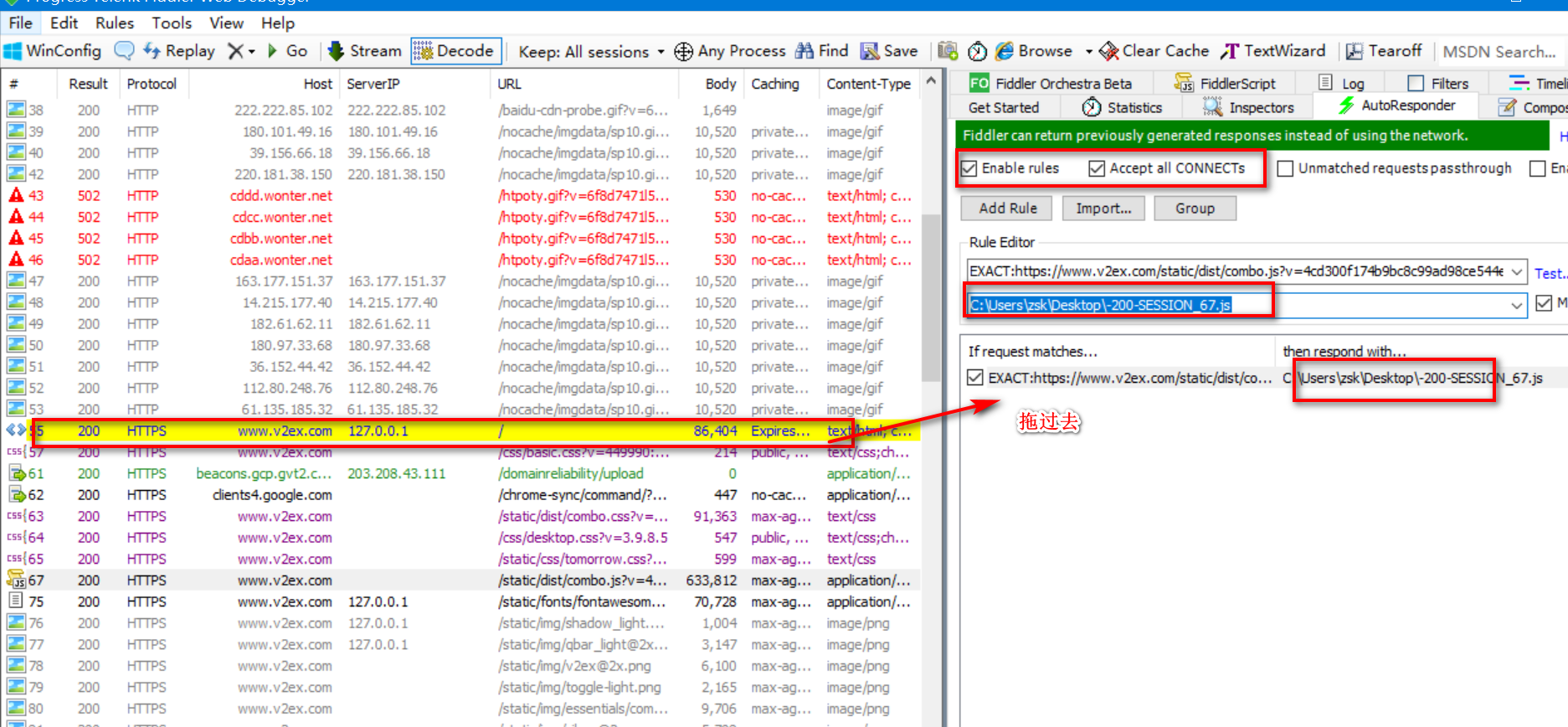
-
Filter: filters.
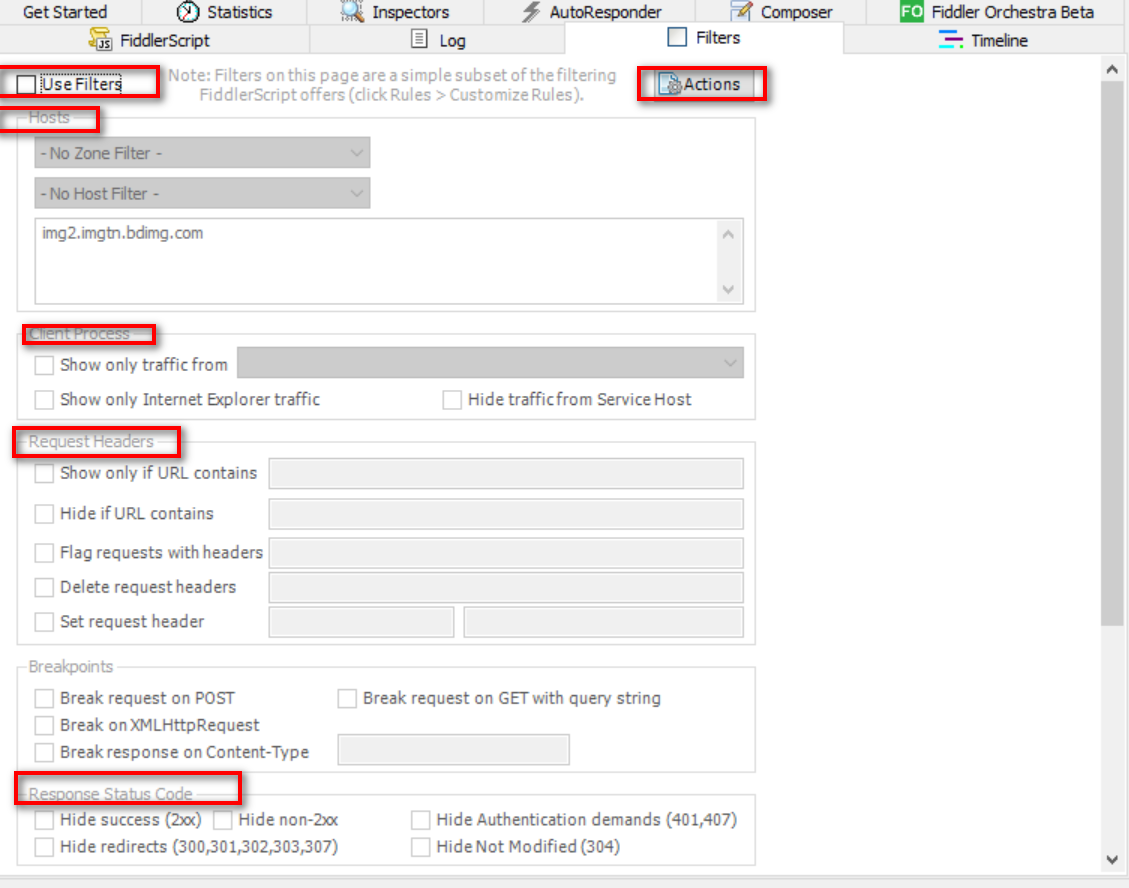
3. Common Operations
3.1. Configure HTTPS
- Tool - Options
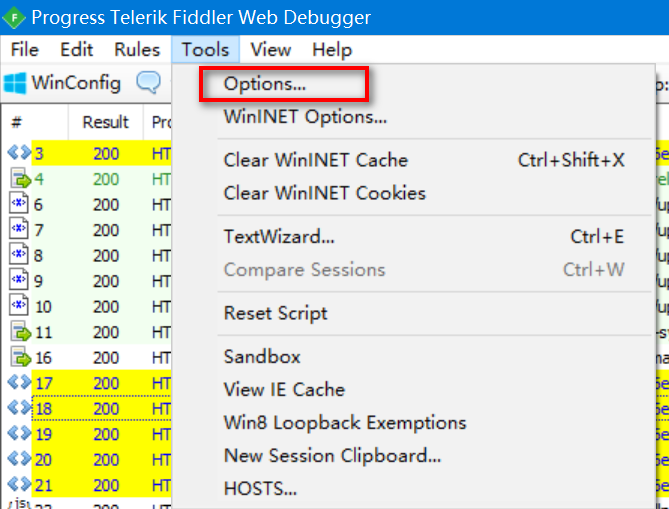
- HTTPS
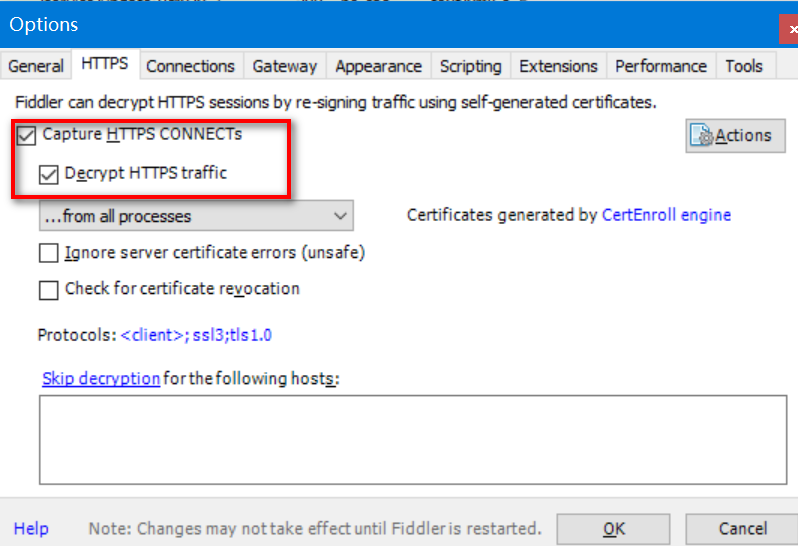
3.2. Configure a Proxy
-
Tool - Options
-
Connections
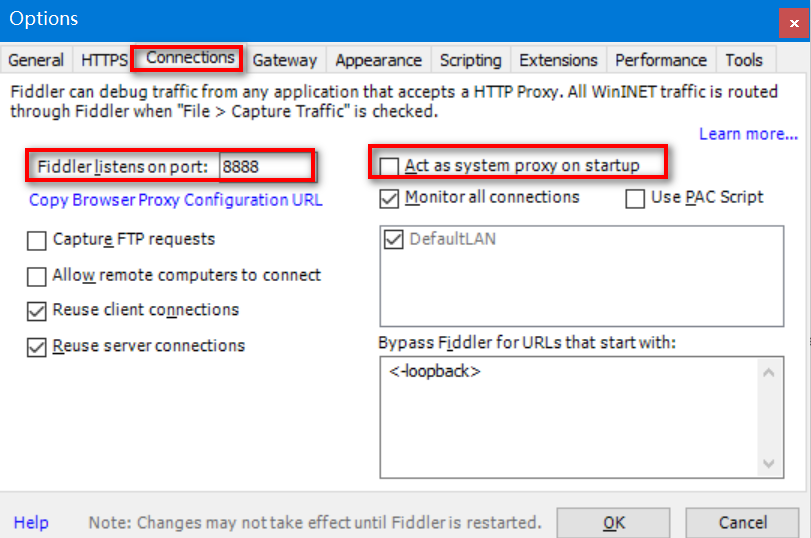
-
Browser
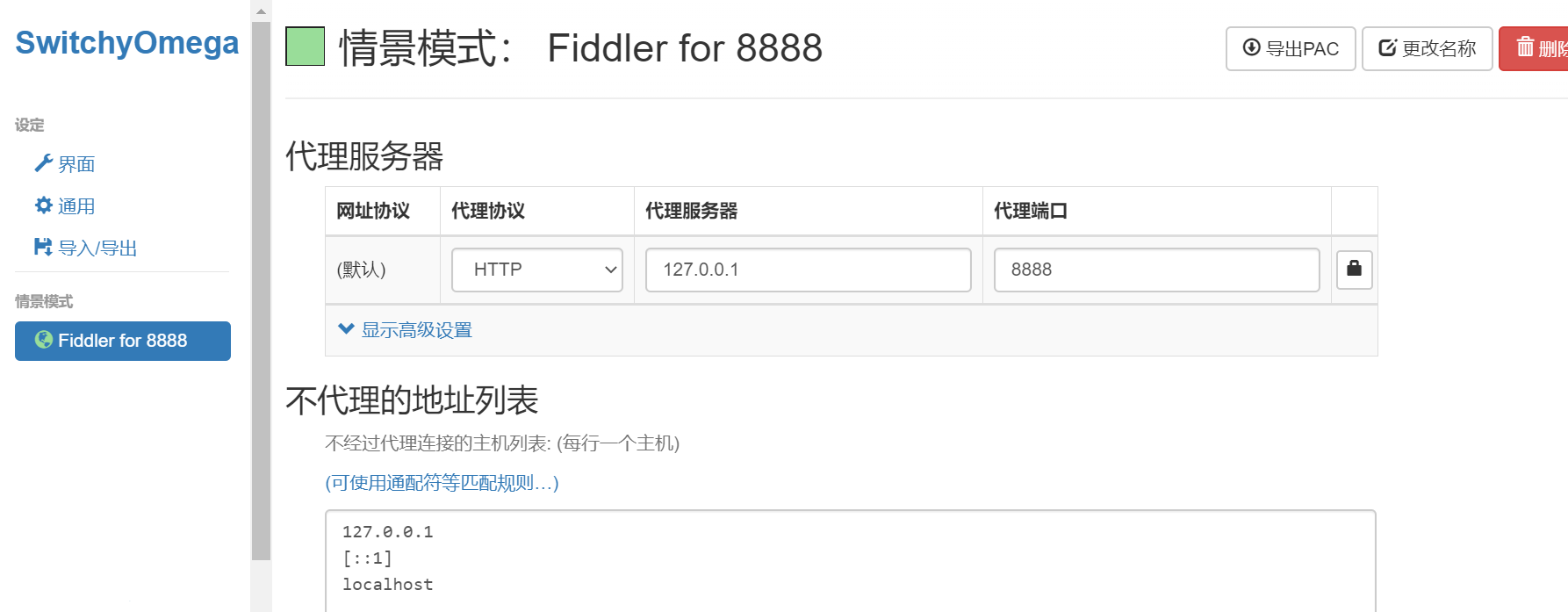
3.3. Add a Server IP Column
- Ctrl+R
- Ctrl+F and find
static function Main() - Add
FiddlerObject.UI.lvSessions.AddBoundColumn("ServerIP", 120, "X-HostIP");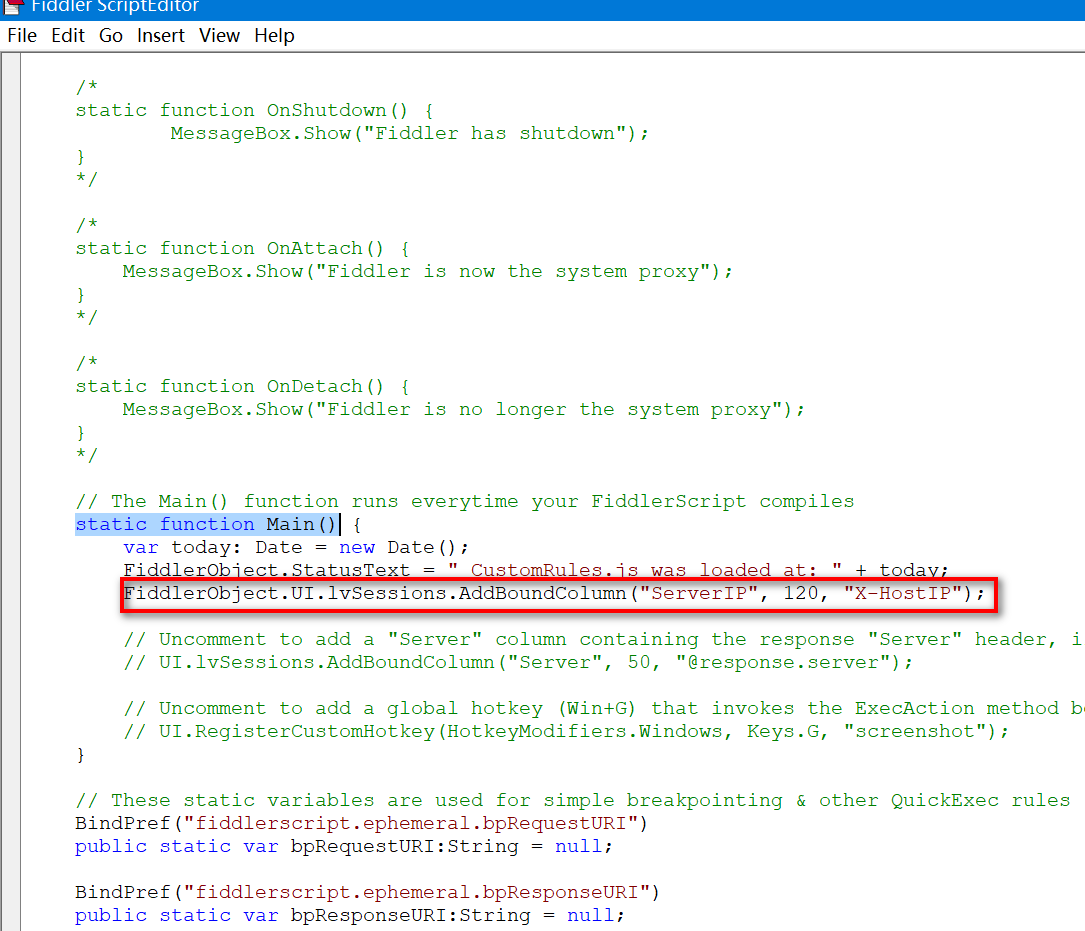
- Ctrl+S
3.4. Enable Filter Rules
- Rules
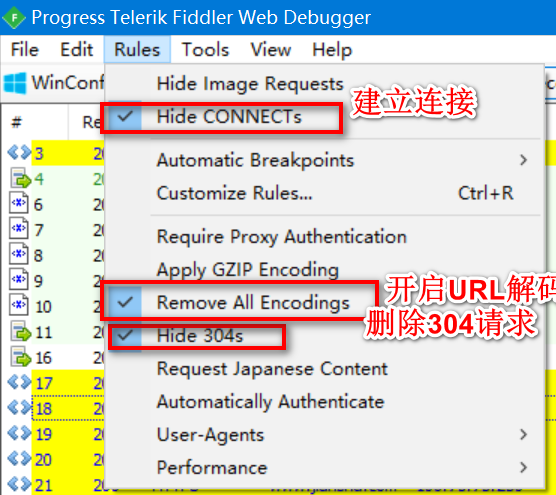
3.5. Capture Android Traffic
- Put the phone and PC on the same LAN.
- Configure Fiddler to allow remote connections.
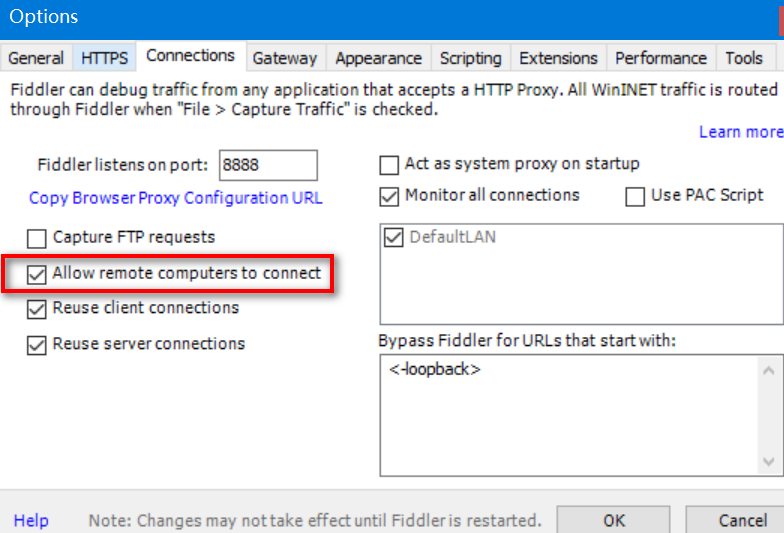
- Set the phone proxy to
PCIP:8888. - Visit
PCIP:8888on the phone to install the certificate.
Discussion
Sign in with GitHub to comment. Discussions are stored as GitHub Issues.View on GitHub